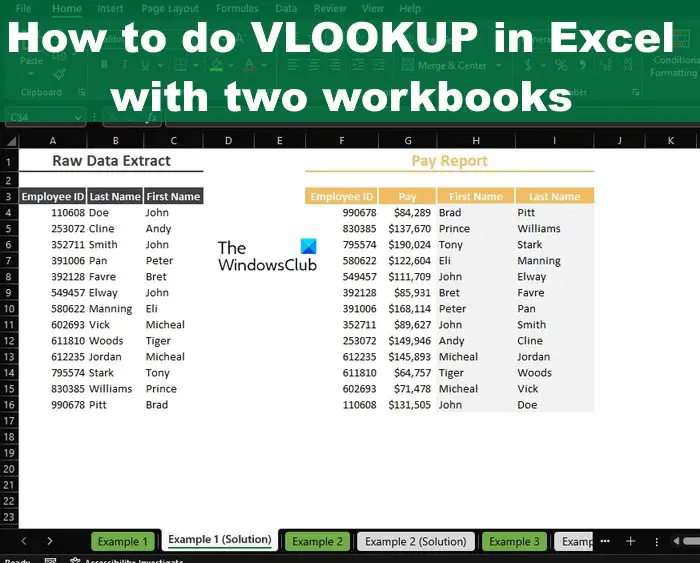
How To Do Vlookup In Two Sheets
Understanding Vlookup
The Vlookup function is a powerful tool in Excel that allows you to search for a value in a table and return a corresponding value from another column. It's commonly used to retrieve data from a database or a large dataset. However, when working with multiple sheets, it can be tricky to perform a Vlookup. In this article, we'll show you how to do a Vlookup in two sheets, making it easy to manage your data.
To start, you'll need to have two sheets open in your Excel workbook. Let's say you have a sheet named 'Sheet1' with a list of employee names and IDs, and another sheet named 'Sheet2' with a list of employee IDs and their corresponding departments. You want to perform a Vlookup to retrieve the department name for each employee in 'Sheet1' from 'Sheet2'.
Performing Vlookup Across Two Sheets
Before we dive into the process, let's quickly review how Vlookup works. The syntax for Vlookup is VLOOKUP(lookup value, table array, col index num, [range lookup]). The lookup value is the value you want to search for, the table array is the range of cells that contains the data, the col index num is the column number that contains the value you want to return, and the [range lookup] is an optional argument that specifies whether you want an exact match or an approximate match.
Now that you understand the basics of Vlookup, let's perform the Vlookup across two sheets. To do this, you'll need to use the following formula: VLOOKUP(A2, Sheet2!A:B, 2, FALSE). This formula searches for the value in cell A2 in 'Sheet1' in the first column of the range A:B in 'Sheet2', and returns the corresponding value in the second column. The FALSE argument specifies that you want an exact match. Simply copy and paste this formula down to the other cells in 'Sheet1', and you'll have the department name for each employee.